Setting Up Feature Selection from the Map Canvas
To set up feature selection from the map canvas, we need to register a QField pointHandler, similar to a QgsMapTool in pyQGIS. This is done in the main code file demo2_selection.qml.
In doing so, we will also learn:
- how to get a layer from a project
- how to get a feature using an expression
- how to get an attribute from a feature
What Are We Doing?
- retrieve a point handler
- get the clicked map coordinates from the point handler
- draw a 20 pixel bounding box around the map coordinates
- use a spatial query to find features on the plot layer that are within the bounding box
- if a feature is found, activate the plugin and pass the feature's plot ID to the plugin component
1. Get the Point Handler from the Interface
Retrieve and store a reference to the QField interface's pointHandler as a class property.
Item{
    id: plugin
    property var pointHandler: iface.findItemByObjectName("pointHandler")

}- iface is your QField interface instance, like qgis.utils.iface in pyqgis. It is imported from org.qfield.
- We have already seen the use of iface.logMessage and iface.addItemToPluginsToolbar
- iface.findItemByObjectName is a QField interface function that retrieves any object from the QField instance, provided it has an objectName property. (This is where you start digging through the source code.)
- pointHandler is a QField interface object that outputs the coordinates of a map interaction and the type of interaction (click, double-click, hold and press)
2. When the Plugin Loads (when Your Project Opens), Register Your Custom Callback Function for the QField Point Handler
The onCompleted function of the root item is triggered when the plugin loads.
Item{
    id: plugin
    property var pointHandler: iface.findItemByObjectName("pointHandler")
    Component.onCompleted{
        pointHandler.registerHandler("demo2_selection", my_callback);
    }
}
3. When the Plugin Is Unloaded (when Your Project Closes), Deregister Your Callback Function!
If you don't do this, your point handler will contaminate your other projects.
Use Component.onDestruction to define behavior on closing.
Item{
    id: plugin
    <...>
    Component.onDestruction{
        pointHandler.deregisterHandler("demo2_selection");
    }
}
4. Define Your Callback with an Arrow Function
Our callback function is written in JavaScript. Instead of using a function reference like below, as a Python programmer would do:
Item{
    id: plugin
    <...>
    Component.onCompleted{
        pointHandler.registerHandler("demo2_selection", my_callback);
    }
}
it is more common to see JavaScript arrow function syntax, as we will see in demo2_selection
Item{

    Component.onCompleted{
        pointHandler.registerHandler("demo2_selection", (point, type, interactionType)=>{
            iface.logMessage("Interaction Type: " + interactionType)
            return true
        });
    }
}
Don't Forget the Boolean Return Value of Your Callback
The boolean return value from the pointHandler callback tells QField whether your handler has consumed the event or not:
return true - event consumed
Your handler has processed the click
- QField should stop passing the event to other handlers
- Prevents QField's default behavior for this click
return false or no return - event not consumed
- Your handler has not processed the click (or wants to pass it through)
- QField passes it on to other registered handlers
- QField's default behavior can still be executed
5. Define the Callback to Get Map Coordinates from User Interaction
Decide Which Interaction You Want
"clicked": Triggering on single click can cause conflicts, as the feature drawer opens on a single click.
- In QField Desktop App, the single click will block the feature drawer and replace it with our plugin.
- In QField for iOS, if you use a single click, the attribute table will be rendered over the plugin.
"doubleClicked": Triggering on double-click prevents conflicts. We can let the feature drawer open on a single click and enter the plugin with a double-click.
- In QField Desktop App, the double-click interaction does not register.
- In iOS, this works great.
"pressAndHold": This would theoretically also be a nice mode for opening our plugin, but in practice it's a poor choice
- In iOS, the context menu that opens on press blocks the opening of our plugin with this interaction.
- In QField Desktop App, the press-and-hold interaction does not register.
Does this mean the boolean return value doesn't work quite as advertised? Perhaps. There is also a priority set on pointHandler callbacks that can affect the processing of the boolean return value from the callback.
To avoid conflicts with QField and ensure our plugin works in both environments, use clicked when we're on Windows or Ubuntu, and doubleClicked when we're on iOS. I did not test this on Android.
Don't Forget Your Return
- return true after handling your point to prevent other handlers like the QField attribute table from firing.
- return false if you're ignoring the interaction so the next handler can pick it up.
Item{
    Component.onCompleted{
        pointHandler.registerHandler("demo2_selection", (point, type, interactionType) => {
            var shouldHandle = (Qt.platform.os === "windows" && interactionType === "clicked") ||
                               (Qt.platform.os !== "windows" && interactionType === "doubleClicked")
            if (shouldHandle) {
                iface.logMessage("Platform " + Qt.platform.os)
                iface.logMessage("Interaction " + interactionType)
                return true // block further processing of the click
            }
            return false // let QField pick up the interaction
        });
    }
}
Get the Pixel Coordinates of the Screen Interaction
pointHandler.registerHandler("demo2_selection", (point, type, interactionType) => {
    var shouldHandle = ...
    if (shouldHandle){
      iface.logMessage(point.x)
      iface.logMessage(point.y)
    }
});
Convert to Map Coordinates
pointHandler.registerHandler("demo2_selection", (point, type, interactionType) => {
    var shouldHandle = ...
    if (shouldHandle){
      let coords = iface.mapCanvas().mapSettings.screenToCoordinate(Qt.point(point.x, point.y))
      iface.logMessage(coords.x)
      iface.logMessage(coords.y)
    }
});
6. Define Your Callback to Perform a Spatial Query on the Plot Layer with Your User Coordinates
We will perform a spatial query on the plots layer with a bounding box of 20m around our clicked coordinates. If we find a feature in this box, we will activate the plugin and pass the feature's plot ID to our plugin component.
Get the Plots Layer from the Project
You can call a subset of the QGIS API functions from QField and JavaScript. You can find out which functions can be called from QField by going to the QGIS C++ Class Reference for the class you're interested in. Functions you can call are marked with Q_INVOKABLE.
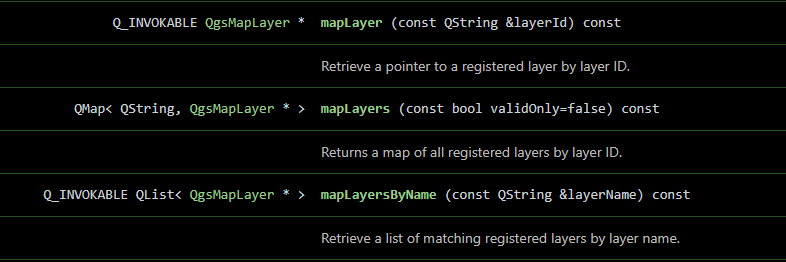
We get the map layer from the QgsProject instance, which is available in QField as qgisProject, imported with org.qgis.
pointHandler.registerHandler("demo2_selection", (point, type, interactionType) => {
    var shouldHandle = ...
    if (shouldHandle){
      let layer = qgisProject.mapLayersByName("plots")[0]
      iface.logMessage("Got plots layer")
    }
});
Get a Feature from the Plots Layer with a LayerUtils Feature Iterator with a Simple Expression
getFeatures is not yet a callable QGIS function. Instead, we can pass an expression to get a feature iterator from QField's LayerUtils class, which is imported from org.qfield.
We will query our plots layer for the feature with plot_id = 'b.1'.
We will retrieve this feature and output its plot ID. (Not using our coordinates yet.)
pointHandler.registerHandler("demo2_selection", (point, type, interactionType) => {
    var shouldHandle = ...
    if (shouldHandle){
      var layer = qgisProject.mapLayersByName("plots")[0]
      var expression = "plot_id = 'b.1'";

      let it = LayerUtils.createFeatureIteratorFromExpression(layer, expression)

      if (it.hasNext()){
        feature = it.next()
        plot_id = feature.attribute("plot_id")
        iface.logMessage("found the feature of the plots layer: " + plot_id)
      }
      it.close(); // NEVER forget to close your iterator
      return true
    }
    return false

});
IMPORTANT: Never forget to close a feature iterator. If you don't close your feature iterator, it will lead to a complete shutdown of QField, after about the 4th time you call the feature iterator.
Now Swap the Simple Expression with a Spatial Query
We will create a bounding box of 20m around our interaction coordinates. We will use the bounding box coordinates to pass an intersection query to LayerUtils, instead of our simple query.
      if (shouldHandle) {
        // Create a pair of points representing a buffer area in which to search for features.
        let tl = mapCanvas.mapSettings.screenToCoordinate(Qt.point(point.x - 20, point.y - 20))
        let br = mapCanvas.mapSettings.screenToCoordinate(Qt.point(point.x + 20, point.y + 20))

        let expression = "intersects(geom_from_wkt('POLYGON(("+tl.x+" "+tl.y+", "+br.x+" "+tl.y+", "+br.x+" "+br.y+", "+tl.x+" "+br.y+", "+tl.x+" "+tl.y+"))'), $geometry)"
        let it = LayerUtils.createFeatureIteratorFromExpression(qgisProject.mapLayersByName("plots")[0], expression)
        if (it.hasNext()) {
          const feature = it.next()
          console.log(feature.id + " " + feature.attribute("plot_id"))
        }
        it.close();
      }
      return false
Finally, When You Find the Feature, Turn On the Plugin and Pass the Plot ID
The Loader class has the "item" property that contains the item loaded from its source component.
In our plugin component, we have defined a plotId property. Setting it directly on pluginLoader.item triggers a QML property binding in the plugin component, which automatically updates the display.
Remember to close the iterator, regardless of whether the feature is found or not!
Remember to return the boolean value for the pointHandler.
    pointHandler.registerHandler("demo2_selection", (point, type, interactionType) => {
      // ...
      if (shouldHandle) {
        // ...
        if (it.hasNext()) {
          // Get your feature
          const feature = it.next()

          // Close your iterator
          it.close()

          // Turn on the plugin, just like the camera button
          pluginLoader.active = true

          // Pass the plot ID to the plugin component
          pluginLoader.item.plotId = feature.attribute("plot_id")

          // Block the interaction signal
          return true
        }
        // Close the iterator if you don't find a feature
        it.close();
      }
      // Pass through the interaction
      return false
    });
Note: parent changed from Demo 1
In Demo 1 the root item used parent: iface.mapCanvas(). Here it uses parent: iface.mainWindow().contentItem instead. This is required because the plugin dialog needs to overlay the entire QField window, not just the map area inside it. mapCanvas() clips child items to the map rectangle, which would hide parts of the plugin UI. mainWindow().contentItem is the full-screen surface that all QField UI elements share.
The Complete demo2_selection.qml
 // imports

Item {
  id: plugin
  parent: iface.mainWindow().contentItem
  anchors.fill: parent

  // Map Selection: 1. Hold a reference to the map canvas
  property var mapCanvas: iface.mapCanvas()

  // Map Selection: 2. Add the pointHandler to the plugin
  property var pointHandler: iface.findItemByObjectName("pointHandler")

  Loader {
    id: pluginLoader
    // ...
  }


  Component.onCompleted: {

    // Map Selection: 3. Register the point handler and define its callback
    pointHandler.registerHandler("demo2_selection", (point, type, interactionType) => {

      // Decide on the interaction
      var shouldHandle = (Qt.platform.os === "windows" && interactionType === "clicked") ||
                         (Qt.platform.os !== "windows" && interactionType === "doubleClicked")
      if (shouldHandle) {

        // Create a pair of points representing a 20m buffer area in which to search for features.
        let tl = mapCanvas.mapSettings.screenToCoordinate(Qt.point(point.x - 20, point.y - 20))
        let br = mapCanvas.mapSettings.screenToCoordinate(Qt.point(point.x + 20, point.y + 20))

        // Perform a spatial query
        let expression = "intersects(geom_from_wkt('POLYGON(("+tl.x+" "+tl.y+", "+br.x+" "+tl.y+", "+br.x+" "+br.y+", "+tl.x+" "+br.y+", "+tl.x+" "+tl.y+"))'), $geometry)"
        let it = LayerUtils.createFeatureIteratorFromExpression(qgisProject.mapLayersByName("plots")[0], expression)
        if (it.hasNext()) {
          // You have a feature, play with it! :)
          const feature = it.next()
          console.log(feature.id)
          it.close()
          pluginLoader.active = true
          // Pass the plot ID to the plugin component
          pluginLoader.item.plotId = feature.attribute("plot_id")
          return true
        }
        it.close();
      }
      return false
    });
  }

  // Map Selection: 4. Deregister the point handler on destruction (should be on project close)
  Component.onDestruction: {
    pointHandler.deregisterHandler("demo2_selection");
  }
}
That was a lot. Let's look at how this plot ID gets to the MessageBox. This part is pretty simple.