Demo 1: Hello World
Plugin Structure and Installation
What We Will Learn
- How to deploy and update a project plugin
- The structure of a project plugin
- Most important QML object classes
Production Installation and Update
- Deploy with QField Sync
- Problems? Reopen project, restart QField
Development Installation and Update
- Load directly from DOS into QField for Windows (local or Cloud)
- For each update, close and restart.
Plugin Structure
Plugin Structure
- Main QML has the same name as the project
- All other files in the attachment directory "components"
Core QML Classes (Components)
1. An Item is the Root Object of Our Plugin
- parent: Must be set to mapCanvas
- anchors.fill: Fills the entire screen
- id: Object name for references
Every QML Document has a single root Object.
2. Component Provides Lifecycle Hooks
Component.onCompleted and Component.onDestruction can be attached to any QML object
Use Case: Register/deregister handlers, initialize data, clean up resources
3. Loader "Constructs" and "Destructs" the Root Object of the Source Component with the "active" Property
Loader loads/unloads components dynamically
Component Also Defines Reusable Templates
Component can wrap Item definitions for reuse with Loader
Why the confusion? QML developers call all reusable QML definitions "components," but Component is also a specific class. When loading from files, Components exist invisibly behind the scenes.
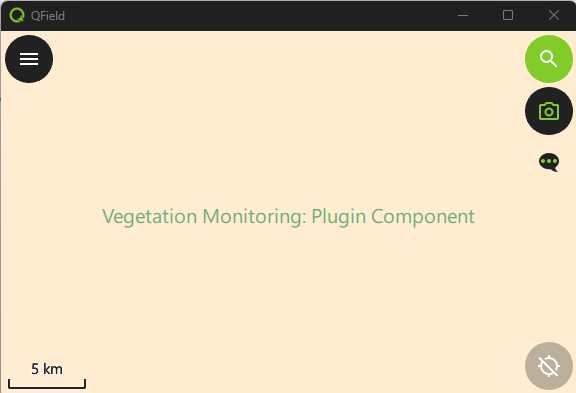
4. d1_plugin_component.qml Contains the Loaded Rectangle Component
PluginTheme.green comes from the style in qmldir and d1_plugin_theme.qml
qmldir and PluginTheme
Globally imported style definitions:
Exercises for the Next 20 Minutes
Tasks:
- Exercise 1: Deploy Demo1 plugin and open in QField
- Exercise 2: Change the title text color (PluginTheme)
- Exercise 3: Change the text in the Rectangle
Detailed Instructions: https://heatherhillers.github.io/workshop_qfield_plugins_de/guide/demo1/demo1_intro_EN.html